1. Start from the blocked workflow
DropMachine is designed for files that are already part of a real task: an email attachment, portal upload, claim, report, signed form, image export, or archive. The product goal is to make that file easier to move.
2. Process supported files locally
The core reduction workflow runs on the Mac. Supported formats are PDFs and common images: JPG, JPEG, PNG, HEIC, HEIF, TIFF, and TIF.
3. Prefer useful replacements
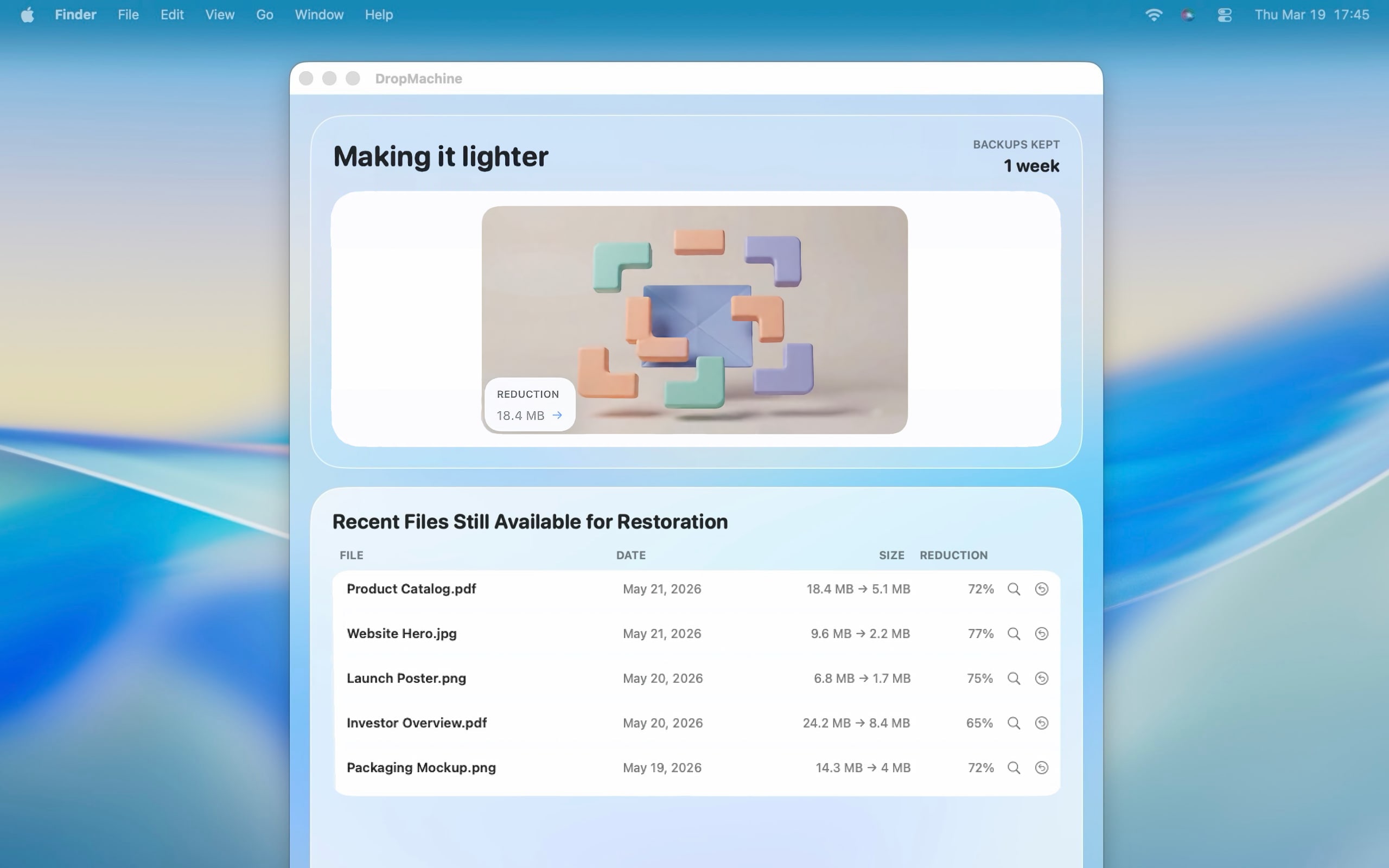
DropMachine replaces the original only when the reduced output is actually smaller. If a file is already optimized or cannot be reduced usefully, the app avoids swapping in a larger result.
4. Keep a recoverable original
When replacement happens, DropMachine keeps a recoverable original while backups are retained. Backup retention is finite, so important source files still need a durable archive outside the app.
5. Set realistic expectations
Scanned PDFs, OCR documents, screenshots, photos, and image-heavy files usually have more room to shrink. Text-only PDFs and files that have already been optimized may shrink little or not at all.