You want AI to summarize a webinar
You want AI to summarize a webinar slide that was only shared on screen.
 GlassCopy
Slides are common prompt material for AI summaries, rewrite requests, and action-item extraction. The high-value workflow is to capture the actual slide text you need, not the whole visual composition with charts, logos, and speaker clutter.
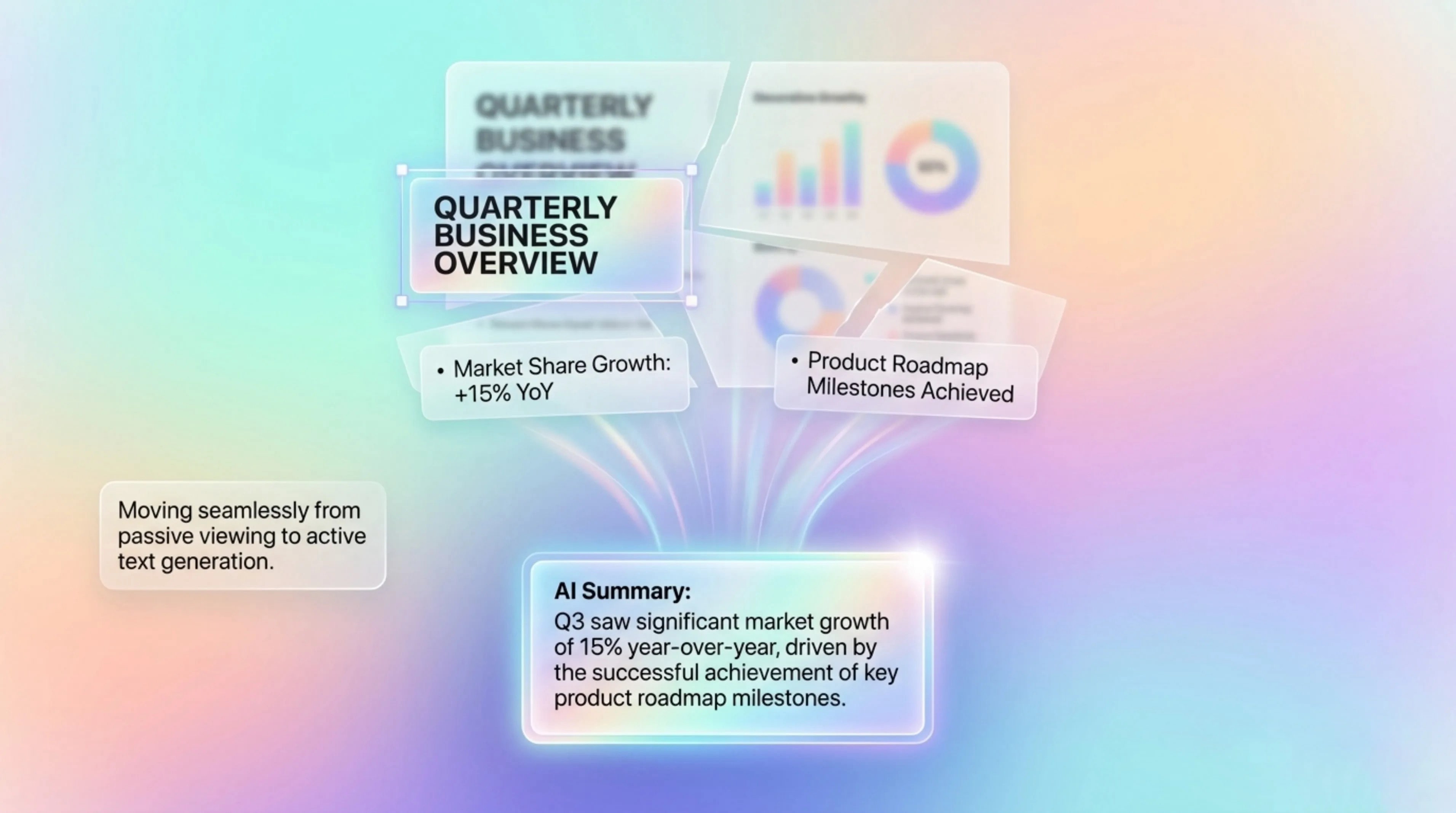
Slides mix layout, decoration, and several text regions. AI prompts work better when you preserve the text hierarchy and omit irrelevant visual elements.
You want AI to summarize a webinar slide that was only shared on screen.
A coworker sends a slide screenshot and you want an assistant to extract action items from the bullets.
You need rewrite help for a product-positioning slide but only have an exported image or PDF page.
Use the editable deck, transcript, or speaker notes if available. Use GlassCopy when the slide text is only visible in a screenshot, PDF export, or video frame.
GlassCopy helps turn visible slide text into prompt-ready context without transcribing a live meeting or recorded webinar by hand.
GlassCopy helps you pull the title, bullets, and key annotations from a slide so the assistant can summarize or rewrite the content without visual noise.
Decide whether you need the title, bullet list, chart labels, or a combination, then capture those parts separately if needed.
Capture the headline, bullets, and annotations in separate passes when the slide is busy.
Paste the captured text in a clean order so the AI can see the title, bullets, and supporting notes as distinct units.
Tell the assistant exactly whether you want a concise summary, a clearer rewrite, a speaker-note draft, or a task list.
The title, bullet group, action items, chart labels, or speaker-visible text needed for the summary task.
Logos, footers, repeated branding, presenter video, decorative chart shapes, and unrelated slide areas.
Capture slide hierarchy in separate chunks so the assistant can preserve structure.
If you already have access to the editable deck or speaker notes, use that source text instead of OCRing the rendered slide.
Slide decks can include internal metrics or customer names. Remove them before prompting unless they are necessary and approved.
Use GlassCopy to get the text locally, then remove anything the assistant does not need.
Paste only the selected excerpt and add the task you want done: summarize, rewrite, explain, compare, classify, or debug.
OCR can change punctuation, numbers, and symbols. Check the text before it leaves your Mac.
Summarizing a conference slide into three bullet points.
Extracting action items from a project review deck screenshot.
Rewriting a product slide headline and supporting bullets.
A webinar slide shows three decisions and two action items.
Capture the title and bullet group, then paste with labels.
A structured excerpt ready for a summary or action-item prompt.
AI assistant, meeting notes, or follow-up plan.
Yes. Use GlassCopy to capture the title and bullet groups, then ask for a specific summary, rewrite, or action list.
Capture title, bullets, and chart labels separately and label them before asking the assistant to summarize.
Remove customer names, internal metrics, roadmap details, presenter notes, and meeting chat unless they are necessary and approved.
These pages cover adjacent workflows without repeating the same advice.
Slide OCR is easiest when you isolate a title, bullet stack, or chart caption rather than capturing the entire visual slide composition.
How to copy text from video on MacThe trick with video OCR is getting a clean paused frame and selecting only the stable text region before motion blur or overlays reduce accuracy.
How to select text from PDFs for AI prompts on MacThe useful workflow is to extract only the clause, section, table, or page region relevant to your question instead of sending a full PDF dump to the assistant.