You want AI to summarize one clause
You want AI to summarize one clause from a scanned contract, not the entire agreement.
 GlassCopy
PDFs often contain more text than an AI prompt should receive at once. When the document is scanned or flattened, GlassCopy helps you pull only the sections that matter and turn them into focused prompt input.
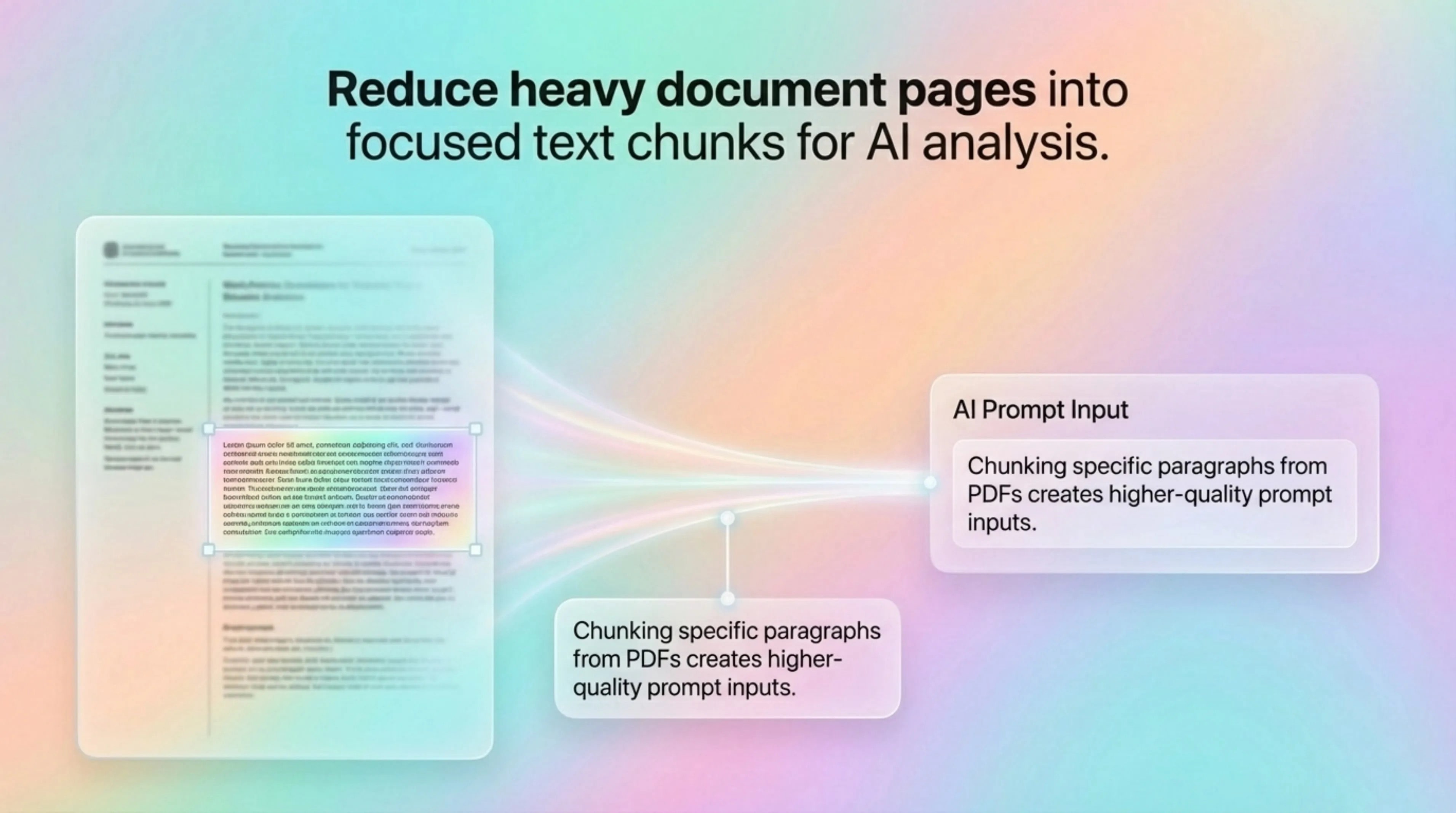
A PDF can contain dense pages, repeated headers, and irrelevant sections. Pulling the whole document into a prompt usually hurts answer quality and can expose more content than needed.
You want AI to summarize one clause from a scanned contract, not the entire agreement.
You need help interpreting a paragraph from a policy PDF that does not allow clean copy.
You want to compare one table or section from a PDF against another document in an AI chat.
Use selectable PDF text or an approved export when it exists. Use GlassCopy when you only need a small excerpt from a scanned, flattened, or protected-looking visual PDF.
GlassCopy helps you pull a narrow, local OCR excerpt from a visible PDF so the AI prompt contains the right amount of context.
The useful workflow is to extract only the clause, section, table, or page region relevant to your question instead of sending a full PDF dump to the assistant.
Identify the paragraph, heading block, or table region the assistant actually needs to see.
Use OCR on one logical chunk at a time so the copied text stays readable and easier to reason about.
Strip visual artifacts that matter to the layout but not to your prompt.
Ask the assistant to summarize, explain, convert to bullets, compare, or rewrite the captured section.
The clause, paragraph, table section, or policy excerpt that directly supports the AI question.
Multi-page boilerplate, signatures, headers, footers, page numbers, and unrelated sections.
Work section by section, label each copied excerpt, and keep the prompt bounded.
If the PDF already has clean selectable text and you can export the exact section directly, use the native copy path instead.
Before sending PDF text to an assistant, remove names, signatures, account details, confidential clauses, and anything outside the actual question.
Use GlassCopy to get the text locally, then remove anything the assistant does not need.
Paste only the selected excerpt and add the task you want done: summarize, rewrite, explain, compare, classify, or debug.
OCR can change punctuation, numbers, and symbols. Check the text before it leaves your Mac.
Summarizing a scanned contract clause in plain English.
Extracting one policy paragraph for AI-assisted rewrite.
Pulling a PDF table section into an assistant for structured analysis.
A scanned policy PDF contains one paragraph you want simplified.
Capture that paragraph only, excluding header and footer.
A concise excerpt ready for a bounded rewrite prompt.
AI assistant, policy note, or email draft.
Use the smallest excerpt that supports the question: one clause, paragraph, table section, or policy snippet.
Usually no. Work section by section so the assistant gets focused context and you avoid oversharing.
Remove names, signatures, account numbers, claim IDs, confidential clauses, and anything outside the requested excerpt.
These pages cover adjacent workflows without repeating the same advice.
GlassCopy is useful when a PDF page looks readable but the PDF viewer cannot highlight or copy the text because the content is image-based.
How to copy text from scanned documents on MacScans often have uneven lighting, skew, stamps, and low contrast. The right workflow is to isolate the useful text region instead of treating the whole page as one OCR block.
How to select slide text for AI summaries on MacGlassCopy helps you pull the title, bullets, and key annotations from a slide so the assistant can summarize or rewrite the content without visual noise.