A scanned contract opens in Preview, but
A scanned contract opens in Preview, but dragging across the paragraph never highlights any words.
 GlassCopy
Some PDFs behave like normal documents. Others are effectively stacks of images. When text selection fails in Preview or another viewer, GlassCopy gives you a fast fallback that works on the visible page.
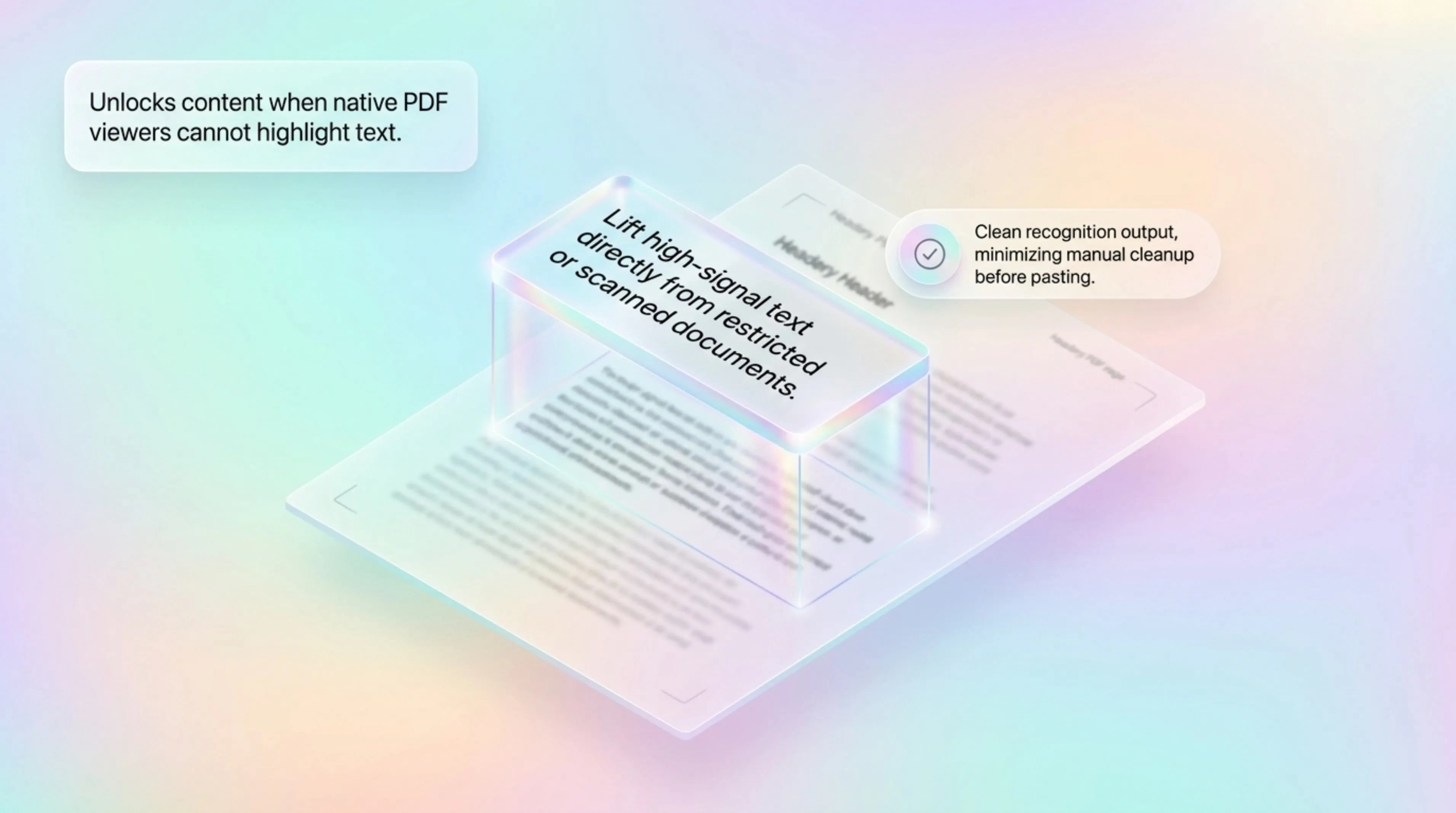
A PDF may contain an embedded image instead of live text, or a complex export may make the visible layer hard to copy cleanly even though it looks like a document.
A scanned contract opens in Preview, but dragging across the paragraph never highlights any words.
An invoice PDF exports from another system as a picture, so account numbers and totals are not selectable.
A presentation deck saved as PDF contains flattened slides with readable text but no live text layer.
Try selecting text in Preview or your PDF reader first. Use GlassCopy when the page is a scan, a flattened export, or a locked visual layer where dragging never highlights words.
GlassCopy works on what is visible, so it is useful when the PDF file does not expose a reliable text layer but the page is readable on screen.
GlassCopy is useful when a PDF page looks readable but the PDF viewer cannot highlight or copy the text because the content is image-based.
Try selecting a few words in Preview first. If you only get a whole-page selection or nothing at all, treat the page as an OCR job.
Increase zoom before capturing, especially for small footnotes, invoice fields, or dense slide exports.
Capture a column, table block, or paragraph rather than the whole PDF page so the OCR engine reads consistent text structure.
Review line breaks and table spacing after paste, because PDFs often introduce layout-driven breaks that are different from the semantic content.
One clause, paragraph, table column, invoice field, or slide-export section at a time.
Headers, footers, signatures, page numbers, watermarks, and neighboring columns unless they change the meaning.
Use the PDF viewer zoom so the target text is crisp, then capture a tight rectangle around the content.
If the PDF already has a searchable text layer and copy works cleanly, use the native selection tool instead.
For contracts, invoices, and IDs, capture the smallest useful region and redact names or account numbers before sending text to another service.
Pulling clauses from a signed scanned contract into an email summary.
Copying totals and invoice numbers from accounting PDFs into a spreadsheet.
Extracting bullet points from a slide deck exported as PDF.
A scanned invoice PDF shows the vendor, invoice number, and total but the page will not select.
Select the invoice number and total as two small regions rather than the full page.
Accurate fields ready for a note, spreadsheet, or accounting system.
Spreadsheet row, reimbursement form, or client email.
Many PDFs are scans or flattened exports. The words are visible pixels, but the file does not expose a reliable text layer.
Use Preview or your PDF reader when normal selection already works. Use GlassCopy when dragging over the page never highlights the text you need.
Capture one field, column, or small table section at a time, then verify numbers before using them downstream.
These pages cover adjacent workflows without repeating the same advice.
Scans often have uneven lighting, skew, stamps, and low contrast. The right workflow is to isolate the useful text region instead of treating the whole page as one OCR block.
How to copy text from slides on MacSlide OCR is easiest when you isolate a title, bullet stack, or chart caption rather than capturing the entire visual slide composition.
What to do when text is not selectable on MacThe fastest way to solve non-selectable text is to identify whether you are looking at an image, a remote session, a flattened document, or a protected app surface, then choose the right workaround.