You drag across a PDF, image, or
You drag across a PDF, image, or app screen and nothing highlights.
 GlassCopy
When text looks real but selection does nothing, the underlying issue is usually the surface, not your mouse. This guide helps you identify why copy fails and when a screen-based OCR workflow is the right fix.
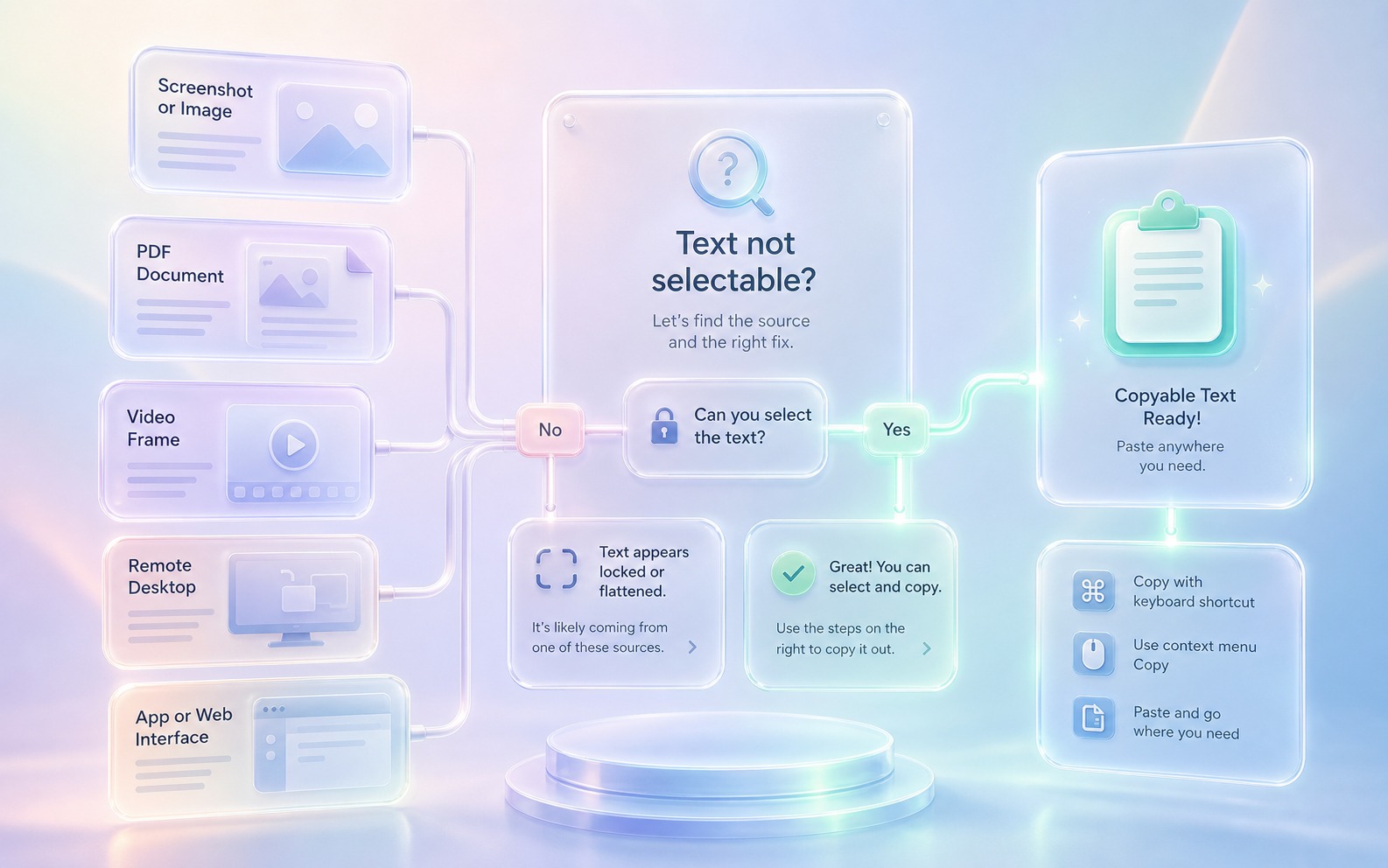
Visible text can be non-selectable because it is rendered as pixels, trapped inside a remote session, flattened into an export, or otherwise not exposed as a live text layer.
You drag across a PDF, image, or app screen and nothing highlights.
A remote desktop or virtual machine shows text, but clipboard transfer is disabled.
A screenshot, video frame, or shared slide has the text you need, but only as a visual layer.
If you are not sure what kind of blocked text you are looking at, use these signals to choose the right workflow.
First ask whether the source has a native text layer: try normal selection, copy from the original file, or use a transcript/export if one exists. Use GlassCopy when the text is visible but only exists as pixels.
GlassCopy is a practical fallback for the moment when you can see the text but cannot select it: it reads the chosen screen region locally and puts the result on your clipboard.
The fastest way to solve non-selectable text is to identify whether you are looking at an image, a remote session, a flattened document, or a protected app surface, then choose the right workaround.
Try the app's normal copy flow first. If selection never appears, treat the visible content as a rendered surface instead of an editable source.
Decide whether you are looking at a screenshot, PDF, slide, remote desktop, image, or video. The surface tells you which workflow and cleanup tips apply.
Launch GlassCopy and select only the text you actually need. Targeted selections reduce OCR noise across every surface type.
If the issue repeats, move into the source-specific guide for screenshots, PDFs, remote desktops, slides, or terminal images so you can use the right tactics.
The smallest visible text region that solves the task after you identify the source type.
Everything that explains the interface but is not part of the text you need: chrome, controls, thumbnails, repeated labels, and unrelated panels.
Decide whether you are looking at a screenshot, PDF, video frame, remote session, scan, or app UI, then follow the matching focused guide.
If you already know the exact source type and have a dedicated guide for it, go directly to that source-specific page.
Because GlassCopy works from visible pixels, your selection boundary is the privacy boundary. Draw it around only the text you intend to copy.
Figuring out why a copied PDF behaves like a picture.
Choosing the right workaround when copy/paste fails in a remote session.
Finding the correct GlassCopy guide after running into blocked text in a tutorial video.
You try dragging over visible text in an app, but nothing highlights and copy does nothing.
Identify the surface type, then select only the text block you need with GlassCopy.
Usable text in the clipboard without retyping.
Notes, ticket, email, spreadsheet, or AI prompt after redaction.
It may be inside a screenshot, scan, video frame, remote desktop, PDF image layer, or custom UI that does not expose selectable text.
Try native selection, the original file, a transcript, a PDF text layer, or an export first. Use OCR when the text is only visible pixels.
Identify the source type and make a smaller selection around just the useful text instead of capturing a whole window.
These pages cover adjacent workflows without repeating the same advice.
GlassCopy is useful when a PDF page looks readable but the PDF viewer cannot highlight or copy the text because the content is image-based.
How to copy text from screenshots on MacWhen text only exists inside a screenshot, GlassCopy lets you select the relevant region and copy OCR output straight into your clipboard.
How to copy text from remote desktop on MacWhen remote clipboard sync is unavailable, GlassCopy helps you capture visible commands, IDs, or messages from the remote screen without changing host settings.