A Citrix or virtual desktop session shows
A Citrix or virtual desktop session shows an error code, but clipboard sync is disabled by policy.
 GlassCopy
Remote sessions often break the normal clipboard path. You can see the text, but copying from the host is blocked, laggy, or disabled. GlassCopy turns the visible host screen into a practical fallback workflow.
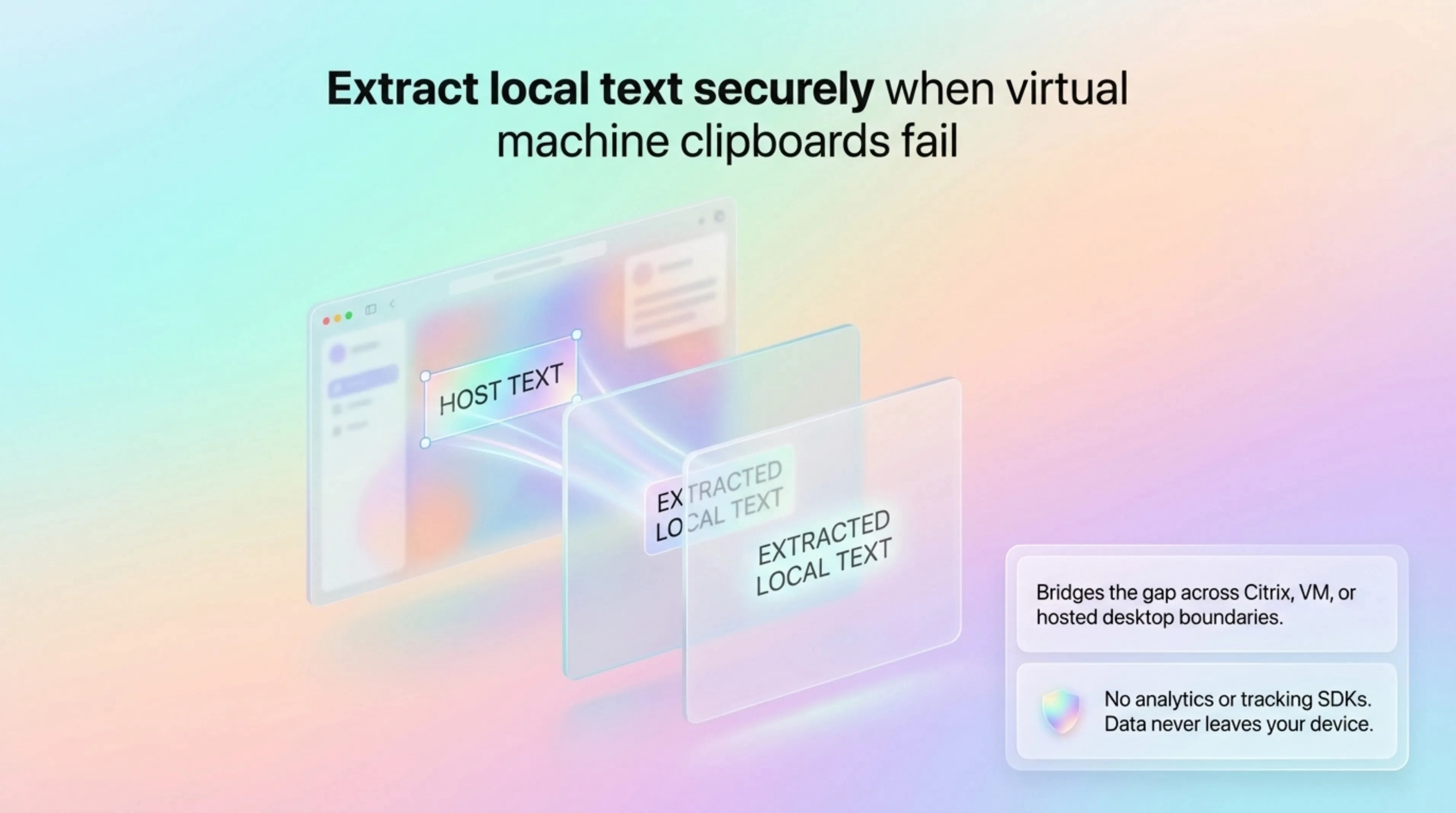
Remote desktop software may disable clipboard transfer, map shortcuts differently, or isolate the host session so visible text cannot be copied back to your Mac.
A Citrix or virtual desktop session shows an error code, but clipboard sync is disabled by policy.
You need a command or host name from a remote terminal window on the guest machine.
A hosted internal app exposes a record ID on screen but blocks normal copy across the remote boundary.
Use normal remote clipboard sync when it works and policy allows it. Use GlassCopy when the remote host blocks copy, clipboard sync fails, or the text is trapped in a hosted app.
GlassCopy runs locally on your Mac, so it can read visible text from a remote session even when the remote clipboard path is blocked or unreliable.
When remote clipboard sync is unavailable, GlassCopy helps you capture visible commands, IDs, or messages from the remote screen without changing host settings.
Pause on the exact host screen that contains the text you need. Any lag or refresh while selecting can change the visible content.
Use the GlassCopy shortcut on your Mac, not the remote host. That keeps the capture workflow local even when remote shortcuts are remapped.
Capture the command line, record ID, or error message rather than the entire desktop session to reduce background noise.
Because GlassCopy copies to the local clipboard, you can immediately paste into Notes, Slack, or another local destination.
The error, server name, table cell, ticket ID, or field value visible inside the remote window.
Remote toolbars, host window borders, credentials, session banners, and unrelated local desktop text.
Keep the remote window sharp, avoid scaling blur, and capture the smallest useful area inside the remote session.
If your remote software already supports reliable local clipboard sync and permits copy, native copy is simpler.
Remote environments may contain sensitive operational data. Capture only what policy permits and only what the local task needs.
Copying a server hostname from a locked-down admin session.
Grabbing a ticket number from a remote enterprise app.
Pulling a command from a guest VM terminal into your local notes.
A Citrix session shows a support case number that will not copy to the local clipboard.
Select only the case number field inside the remote app.
The case number appears on the Mac clipboard for local paste.
Local ticket, chat reply, or troubleshooting note.
If the text is visible on your Mac display, GlassCopy can OCR the selected region even when remote clipboard sync is blocked.
No. Use normal remote copy when it works and policy allows it. GlassCopy is a local fallback for permitted visible text.
Display scaling and compression can blur small text. Zoom or resize the remote window before capturing important values.
These pages cover adjacent workflows without repeating the same advice.
Terminal content often includes monospace text, prompts, stack traces, and file paths, so the best workflow is to capture one command block or error section at a time.
How to copy text from video on MacThe trick with video OCR is getting a clean paused frame and selecting only the stable text region before motion blur or overlays reduce accuracy.
What to do when text is not selectable on MacThe fastest way to solve non-selectable text is to identify whether you are looking at an image, a remote session, a flattened document, or a protected app surface, then choose the right workaround.