A coworker posts a terminal screenshot in
A coworker posts a terminal screenshot in chat and you need the exact failing command.
 GlassCopy
Terminal screenshots are common in bug reports, chats, and incident threads. They are also painful when you need the exact command, path, or stack trace. GlassCopy lets you recover terminal text without retyping long lines by hand.
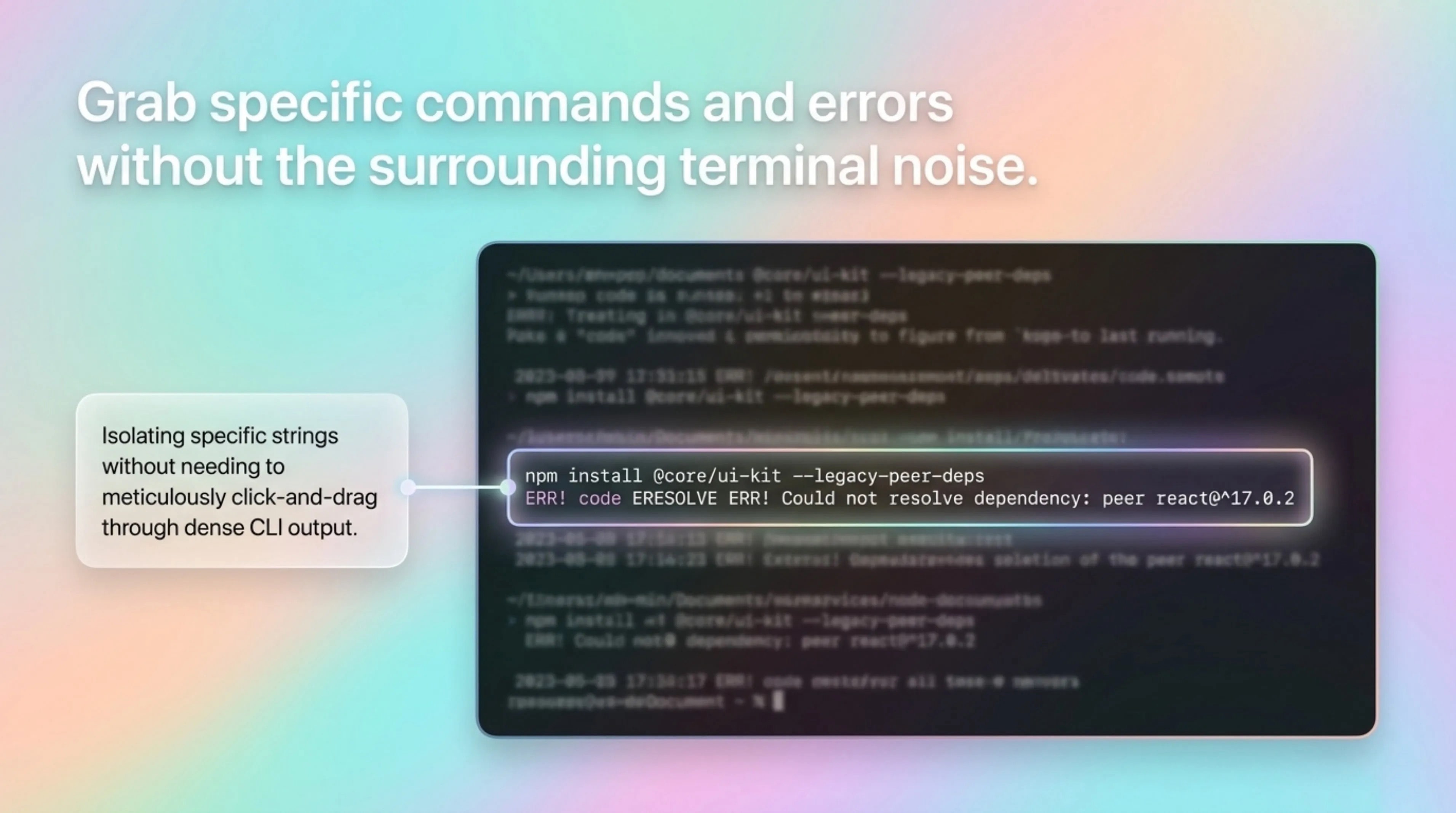
Once terminal output is shared as an image, the commands and logs become unselectable pixels even though they still look like live shell text.
A coworker posts a terminal screenshot in chat and you need the exact failing command.
A support ticket includes a stack trace screenshot with file paths and line numbers.
An incident recap contains screenshots of logs instead of raw text.
Use raw logs or terminal scrollback when you have access. Use GlassCopy when the terminal content is only available as a screenshot, shared image, or remote screen.
GlassCopy turns a terminal screenshot into reviewable text on your clipboard, but it keeps you in control: always inspect OCR output before running or sharing commands.
Terminal content often includes monospace text, prompts, stack traces, and file paths, so the best workflow is to capture one command block or error section at a time.
Terminal screenshots often contain small glyphs and dense lines. Enlarging the image before OCR helps preserve punctuation and case.
Use GlassCopy on a tight region such as one command, one traceback segment, or one log cluster rather than the whole screenshot.
A monospaced editor makes it easier to verify spacing, punctuation, flags, and file paths before you reuse the text.
Commands, hashes, and flags are sensitive to even one wrong character, so review the output before executing it.
The command, first meaningful error lines, file path, or stack frame needed for debugging.
Prompt decorations, shell history, access tokens, internal hosts, and unrelated output above or below the failure.
Zoom monospace text until punctuation is clear and capture one command/output block at a time.
If the raw log or command is available in the ticket, repo, or terminal history, use that source instead of OCR output.
Terminal output can expose secrets. Redact tokens, keys, internal hosts, and customer identifiers before pasting copied text anywhere.
Recovering a one-line fix command from a support screenshot.
Copying stack trace paths into an IDE search.
Saving log output from a screenshot-based incident message.
A teammate posts a terminal screenshot with a failing build command and error.
Capture the command and the first error block, excluding old shell history.
A clean code-formatted snippet ready for debugging.
Issue comment, support ticket, or AI debugging prompt.
Yes, but review the copied text carefully. OCR can change symbols that matter in commands and paths.
No. Paste into a scratch area first and verify every flag, quote, slash, dash, and path before running anything.
Capture the command, the first meaningful error lines, and the relevant file path or stack frame, not the entire shell history.
These pages cover adjacent workflows without repeating the same advice.
When text only exists inside a screenshot, GlassCopy lets you select the relevant region and copy OCR output straight into your clipboard.
How to copy text from remote desktop on MacWhen remote clipboard sync is unavailable, GlassCopy helps you capture visible commands, IDs, or messages from the remote screen without changing host settings.
What to do when text is not selectable on MacThe fastest way to solve non-selectable text is to identify whether you are looking at an image, a remote session, a flattened document, or a protected app surface, then choose the right workaround.