You receive a scanned statement and need
You receive a scanned statement and need an account number or mailing address.
 GlassCopy
Scanned documents look like text, but they often behave like photos. If you need a clause, reference number, or address out of a paper scan, GlassCopy can turn the visible scan region into text quickly.
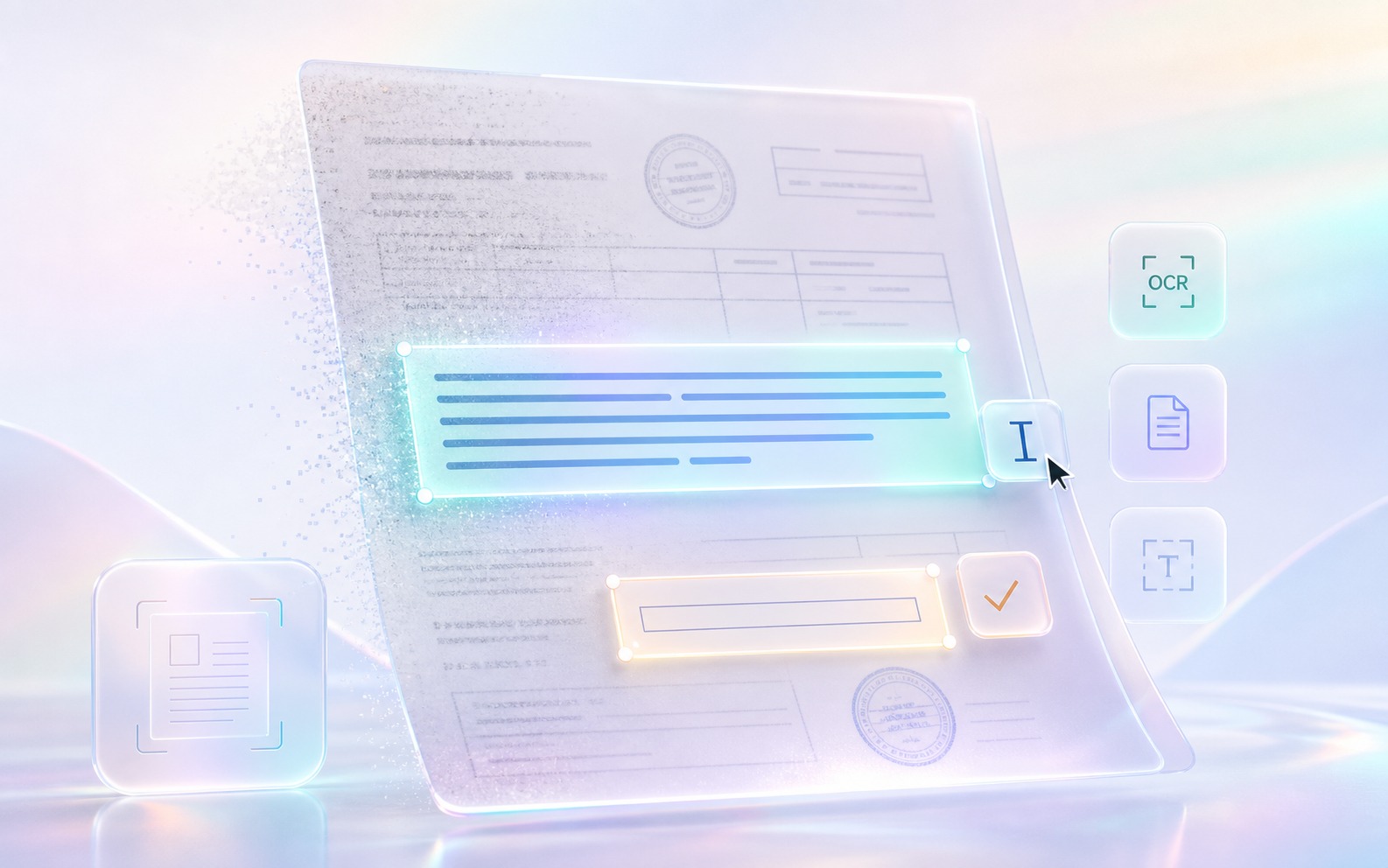
A scan captures paper as pixels, including noise and layout artifacts. Without OCR, macOS cannot reuse the printed words as machine-readable text.
You receive a scanned statement and need an account number or mailing address.
A paper form was emailed as an image-based attachment and you need a paragraph from it.
You are summarizing a scanned letter and want a few exact lines without retyping.
If your scanner or document app already produced a searchable PDF, use that text layer. Use GlassCopy when you are looking at a scan, photo, fax, or printed form that is readable but not selectable.
GlassCopy is useful for one-off paper recovery because you can pull only the visible fields you need without running a full document OCR pipeline.
Scans often have uneven lighting, skew, stamps, and low contrast. The right workflow is to isolate the useful text region instead of treating the whole page as one OCR block.
Make the relevant paragraph or field large enough to read clearly, especially if the scan has faint print or compression noise.
Use GlassCopy on the cleanest printed-text region so the OCR engine does not get distracted by boxes, signatures, or seals.
Separate addresses, totals, and body text into different passes if the form layout is dense.
Scans often confuse similar characters such as 0 and O, or 1 and I, so a quick sanity check matters.
One printed field, paragraph, address block, clause, or table area at a time.
Form borders, stamps, handwriting, signatures, punched holes, shadows, and skewed page edges unless needed.
Zoom until the printed text is crisp and choose a region with even lighting and minimal background noise.
If you control the scanner and can export searchable OCR PDFs upstream, do that once and avoid repeated screen-based extraction.
Scanned documents often contain signatures, addresses, and account data. Select only the field required for your task.
Extracting a claim number from a scanned insurance letter.
Copying a mailing address from a photographed form attachment.
Reusing a clause from an archived paper document.
A scanned application form contains a reference number and mailing address.
Capture the reference number and address block as separate selections.
Verified text snippets ready to paste without retyping.
CRM note, email draft, or spreadsheet.
Yes. It works well for printed fields, addresses, clauses, and reference numbers that are visible but not selectable.
Only when you need the whole page. For accuracy, capture one field, paragraph, or table area at a time.
Verify dates, totals, addresses, reference numbers, and any text near stamps, borders, or page noise.
These pages cover adjacent workflows without repeating the same advice.
GlassCopy is useful when a PDF page looks readable but the PDF viewer cannot highlight or copy the text because the content is image-based.
How to copy text from images on MacGlassCopy works well when the image itself is the source of truth and you need a quick text extraction workflow without opening a full OCR suite.
What to do when text is not selectable on MacThe fastest way to solve non-selectable text is to identify whether you are looking at an image, a remote session, a flattened document, or a protected app surface, then choose the right workaround.