You want ChatGPT to explain an error
You want ChatGPT to explain an error message shown in a screenshot without also feeding it the whole app window.
 GlassCopy
When a screenshot contains the error, policy snippet, or UI copy you want to ask an AI assistant about, the real job is not just OCR. It is selecting the right excerpt, removing noise, and pasting a prompt-ready block of context.
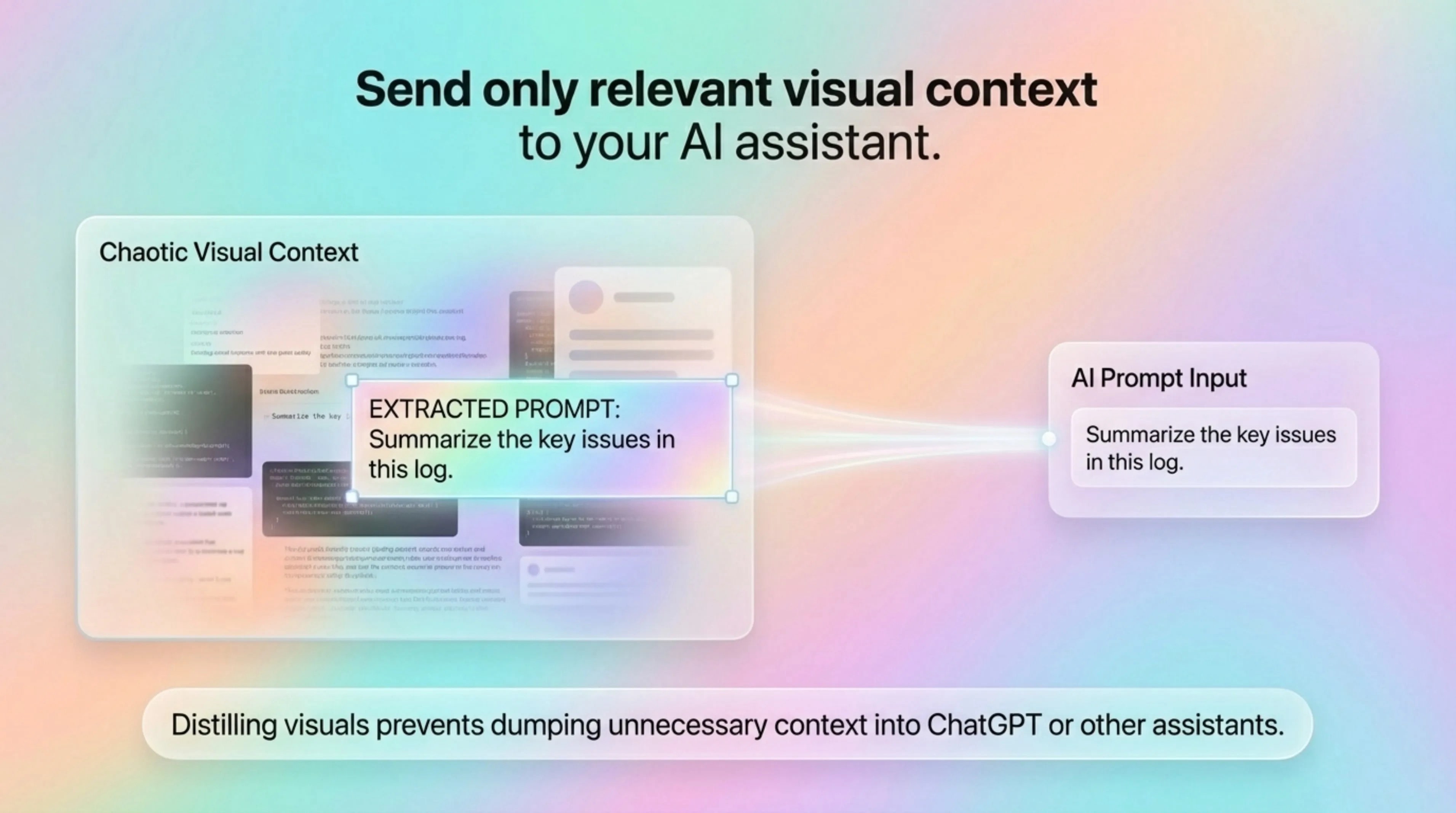
A screenshot can contain a lot of visible text, but only a small part of it is usually relevant to the AI task. Selecting everything leads to weaker prompts and more accidental oversharing.
You want ChatGPT to explain an error message shown in a screenshot without also feeding it the whole app window.
A teammate sends a screenshot of onboarding copy and you want AI help rewriting just the message text.
You captured a confirmation page and want an assistant to summarize the important details for follow-up.
Use clean source text when you have it. Use GlassCopy when the screenshot contains the only accessible copy, error, policy snippet, or UI text you want to ask an assistant about.
GlassCopy lets you OCR locally first, then decide exactly which copied text leaves your Mac in an AI prompt.
GlassCopy helps you grab only the text that matters from a screenshot so your AI prompt stays specific instead of bloated with unrelated on-screen clutter.
Before capturing, identify the exact text block that supports the prompt, such as the error message, warning, or paragraph you want analyzed.
Capture the specific message, label group, or paragraph rather than the entire screenshot so your prompt carries less noise.
Delete timestamps, navigation labels, and repeated UI text that do not help the assistant answer the question.
Tell the AI what you want done with the selected text, such as summarize, rewrite, classify, explain, or compare.
Only the excerpt the assistant needs to answer your question.
Navigation, timestamps, account details, other chat messages, unrelated UI labels, and decorative text.
Capture one meaningful excerpt, paste it into a prompt draft, then add the question around it.
If the original app or webpage already exposes selectable text, copy the clean source text directly into the prompt instead of OCR output.
Treat the screenshot as sensitive until you trim it. Do not send surrounding account details just because they were visible.
Use GlassCopy to get the text locally, then remove anything the assistant does not need.
Paste only the selected excerpt and add the task you want done: summarize, rewrite, explain, compare, classify, or debug.
OCR can change punctuation, numbers, and symbols. Check the text before it leaves your Mac.
Asking an AI assistant to explain a product error shown in a screenshot.
Getting rewrite suggestions for onboarding copy taken from a UI capture.
Turning a screenshot of meeting logistics into a clean checklist.
A screenshot shows a product error and surrounding dashboard UI.
Capture only the error message and one relevant field label.
A short excerpt that can be quoted in the prompt.
ChatGPT, Claude, or another assistant with a specific task request.
Yes. Use GlassCopy to extract only the relevant text, then paste it into a prompt with a clear task.
Remove customer names, account details, private project labels, internal URLs, and anything unrelated to the question.
Large noisy OCR output makes prompts weaker and increases the chance of sharing sensitive or irrelevant context.
These pages cover adjacent workflows without repeating the same advice.
When text only exists inside a screenshot, GlassCopy lets you select the relevant region and copy OCR output straight into your clipboard.
What to do when text is not selectable on MacThe fastest way to solve non-selectable text is to identify whether you are looking at an image, a remote session, a flattened document, or a protected app surface, then choose the right workaround.
How to select terminal text for AI debugging prompts on MacGlassCopy helps you extract the failing command, error message, and a small amount of surrounding context so the AI sees the real problem instead of a noisy transcript.