A coworker posts a terminal screenshot and
A coworker posts a terminal screenshot and you want AI help understanding the failing command.
 GlassCopy
When you want AI help debugging a terminal error, the challenge is not just copying the screenshot. It is selecting the failure signal, preserving the command context, and omitting noise that sends the assistant in the wrong direction.
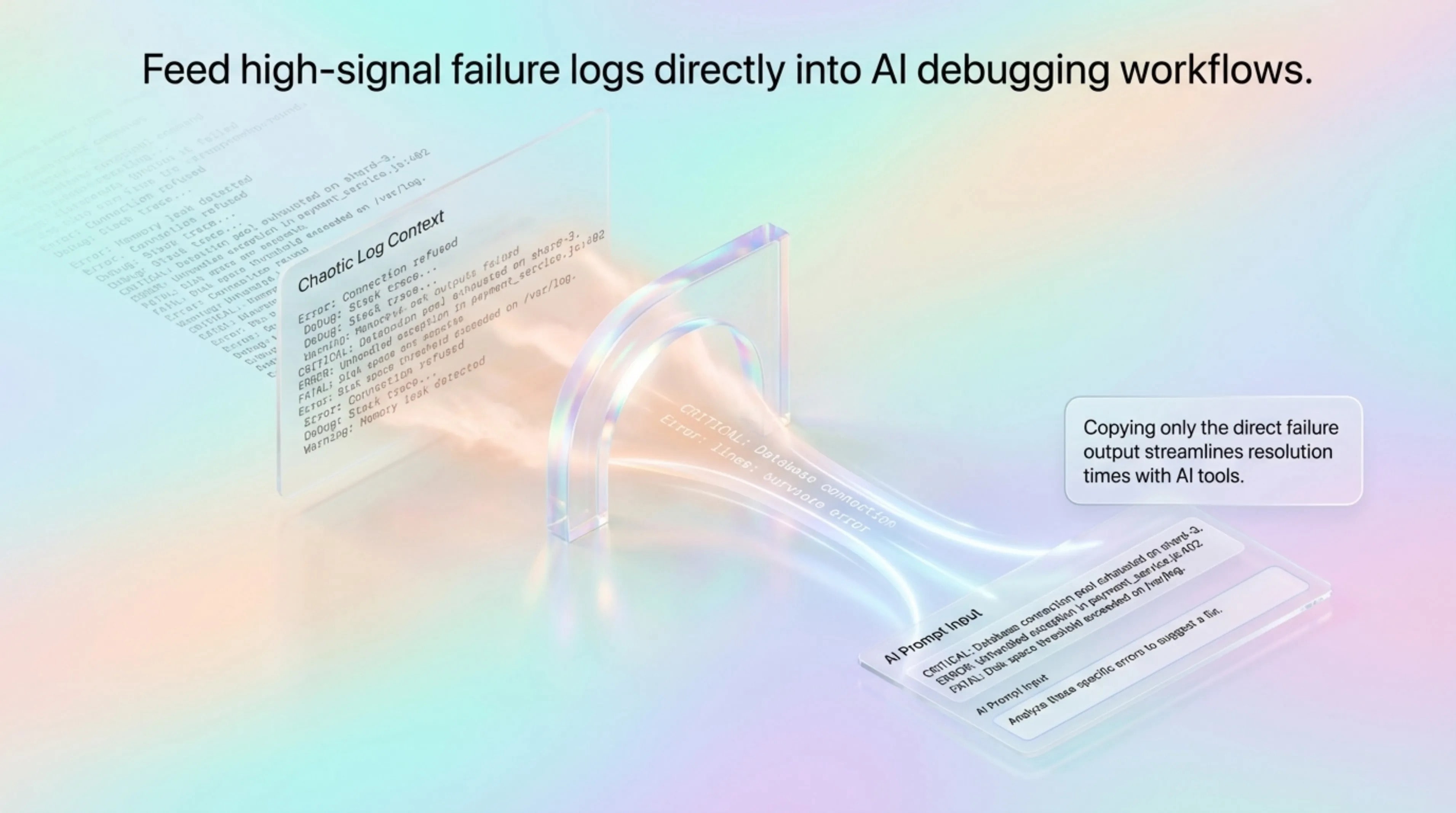
Terminal screenshots often mix prompts, logs, stack traces, and unrelated shell history. Copying everything into an AI prompt can hide the actual failure and encourage unsafe suggestions.
A coworker posts a terminal screenshot and you want AI help understanding the failing command.
You only have an image of a stack trace and want to ask an assistant where to start debugging.
A support ticket includes screenshot-based logs and you need a cleaner prompt for triage.
Use raw logs when available. Use GlassCopy when the debugging context exists only as a screenshot, remote screen, or image in a support thread.
GlassCopy gives you a quick local path from terminal screenshot to editable prompt text, while keeping a review step before anything is shared or run.
GlassCopy helps you extract the failing command, error message, and a small amount of surrounding context so the AI sees the real problem instead of a noisy transcript.
Pick the command, error line, and one small surrounding block that explains what failed.
Capture the relevant lines tightly so the prompt is centered on the real failure, not the whole terminal session.
Check OCR output carefully because one wrong character can change the debugging path or command meaning.
Frame the prompt around explanation, likely causes, next checks, or safe remediation steps rather than asking the AI to invent the entire context.
The failing command, top exception, error message, file path, and first relevant stack frame.
Secrets, tokens, internal hosts, unrelated shell history, and huge repeated stack frames.
Capture the minimum reproducible clue and add runtime/repo context in your own words.
If the raw logs or command history are available, use the original text instead of OCR output for debugging prompts.
Never paste terminal OCR into an AI assistant until secrets, customer IDs, private hosts, and tokens are removed.
Use GlassCopy to get the text locally, then remove anything the assistant does not need.
Paste only the selected excerpt and add the task you want done: summarize, rewrite, explain, compare, classify, or debug.
OCR can change punctuation, numbers, and symbols. Check the text before it leaves your Mac.
Asking AI to explain a compiler error from a screenshot.
Getting a debugging plan from a captured traceback.
Turning screenshot-based support logs into a cleaner triage prompt.
A screenshot in a support ticket shows a compiler error.
Capture the command, top error, and one relevant file path.
A clean debugging excerpt in a code block.
AI debugging prompt or teammate handoff.
Yes. Capture the command and the first meaningful error lines, then review and redact before sending.
Remove API keys, tokens, auth headers, customer IDs, private hostnames, internal URLs, and production data.
Include the failing command, top error, relevant path, runtime context, and what you already tried.
These pages cover adjacent workflows without repeating the same advice.
Terminal content often includes monospace text, prompts, stack traces, and file paths, so the best workflow is to capture one command block or error section at a time.
How to copy text from remote desktop on MacWhen remote clipboard sync is unavailable, GlassCopy helps you capture visible commands, IDs, or messages from the remote screen without changing host settings.
How to select text from screenshots for AI prompts on MacGlassCopy helps you grab only the text that matters from a screenshot so your AI prompt stays specific instead of bloated with unrelated on-screen clutter.